
How to add our site to your phone’s home screen
If you regularly access the our homepage or customer portal, you can save time by adding them to your phone’s home screen. This will create an icon for each site on your main phone screen, just like an app.
The instructions below will guide you through adding both our homepage and the 'Report it' page to your home screen on Apple and Android phones (Google Chrome, Samsung internet browser and Firefox), using clear steps.
Why should I add an icon to my home screen?
Adding a website to your home screen makes it much easier to get to your favourite or frequently used site(s). Once set up, just tap the icon to open the website right away, without needing to search or type the address each time.
Which pages should I add to my home screen?
If you would like to make it easy to see your own customer profile and report any issues, you can add a shortcut for your profile right onto your phone’s main screen. This means you just tap an icon, like you do with other apps, and it takes you straight to your information, where you can report anything you need.
To do this, follow the instructions as below. Once you have finished, the new icon will appear on your phone’s main screen. Simply tap it whenever you want to view your details or let us know about a problem. There is no need to search or type anything in; just one tap and you’re there.
For Apple Phones (iPhones)
Using the Safari Browser
Step one
Open the Safari app on your iPhone.
Step two
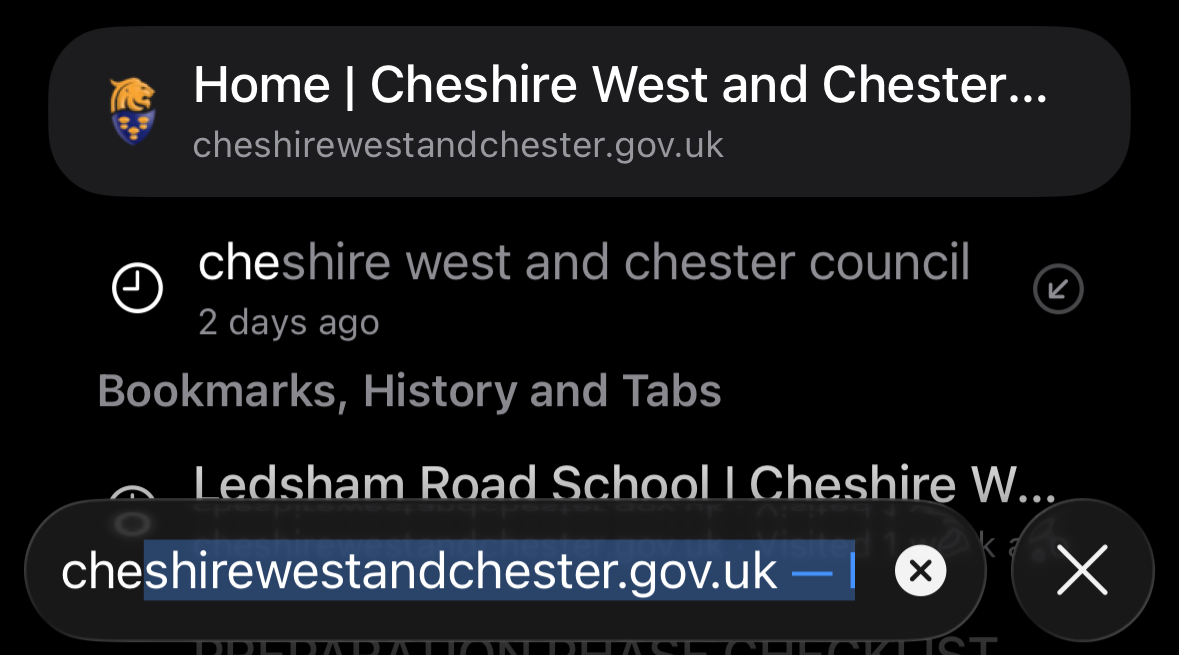
Type in or open Cheshire west and Chester or the 'Report it' page.
Step three
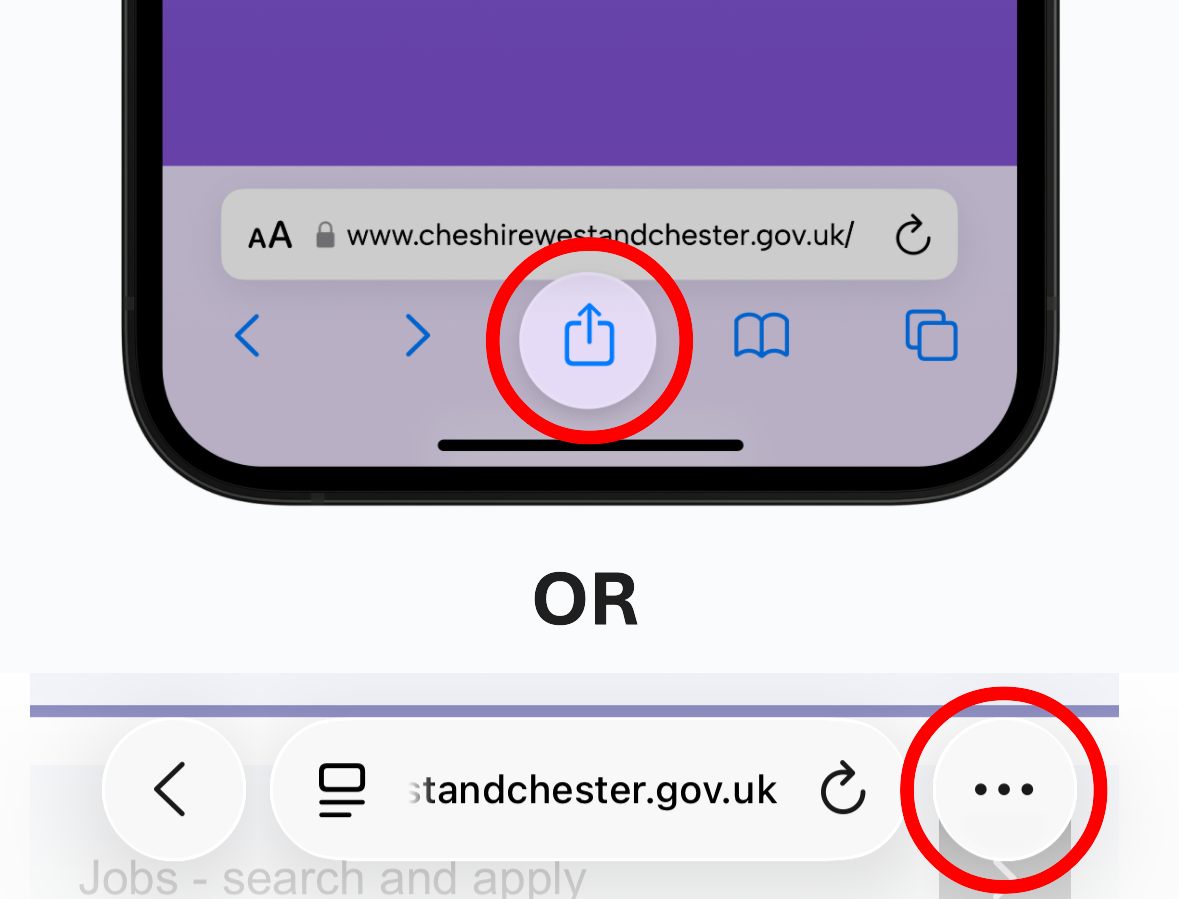
Find the Share button. It looks like a square with an arrow pointing up, usually at the bottom of the screen, if you don't immediately see it, you may have to first tap the three dots in the corner, then you should get an option to share. Tap it once.
Step four
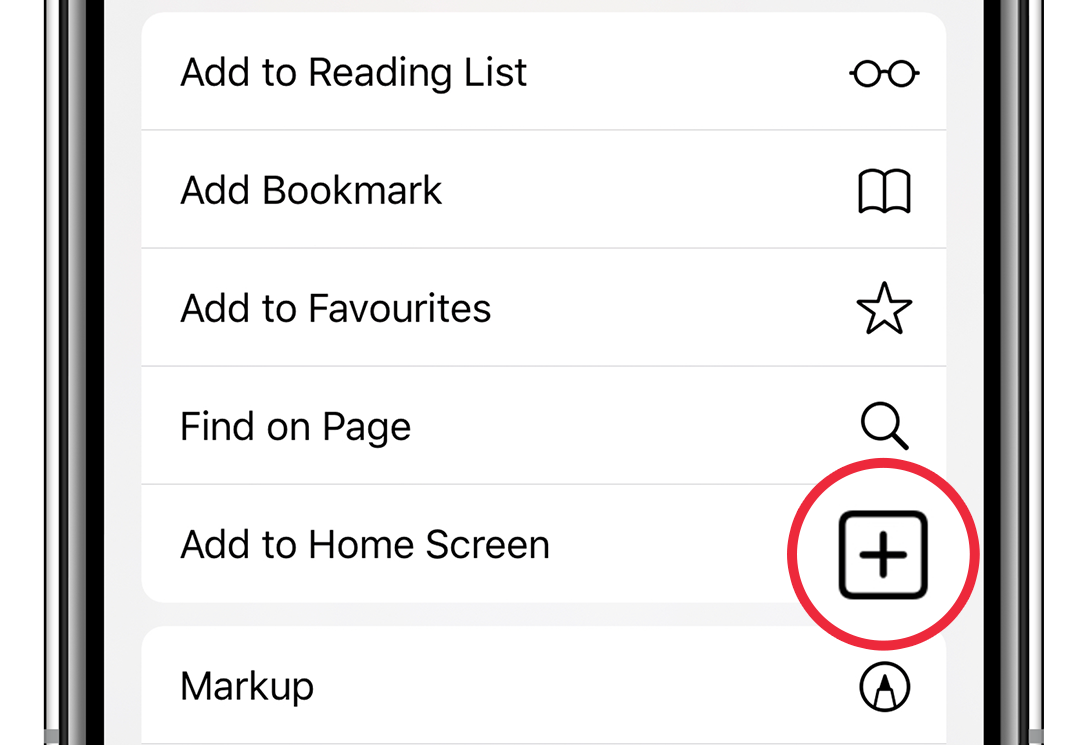
A menu will appear. Scroll down and look for “Add to Home Screen.” Tap on it.
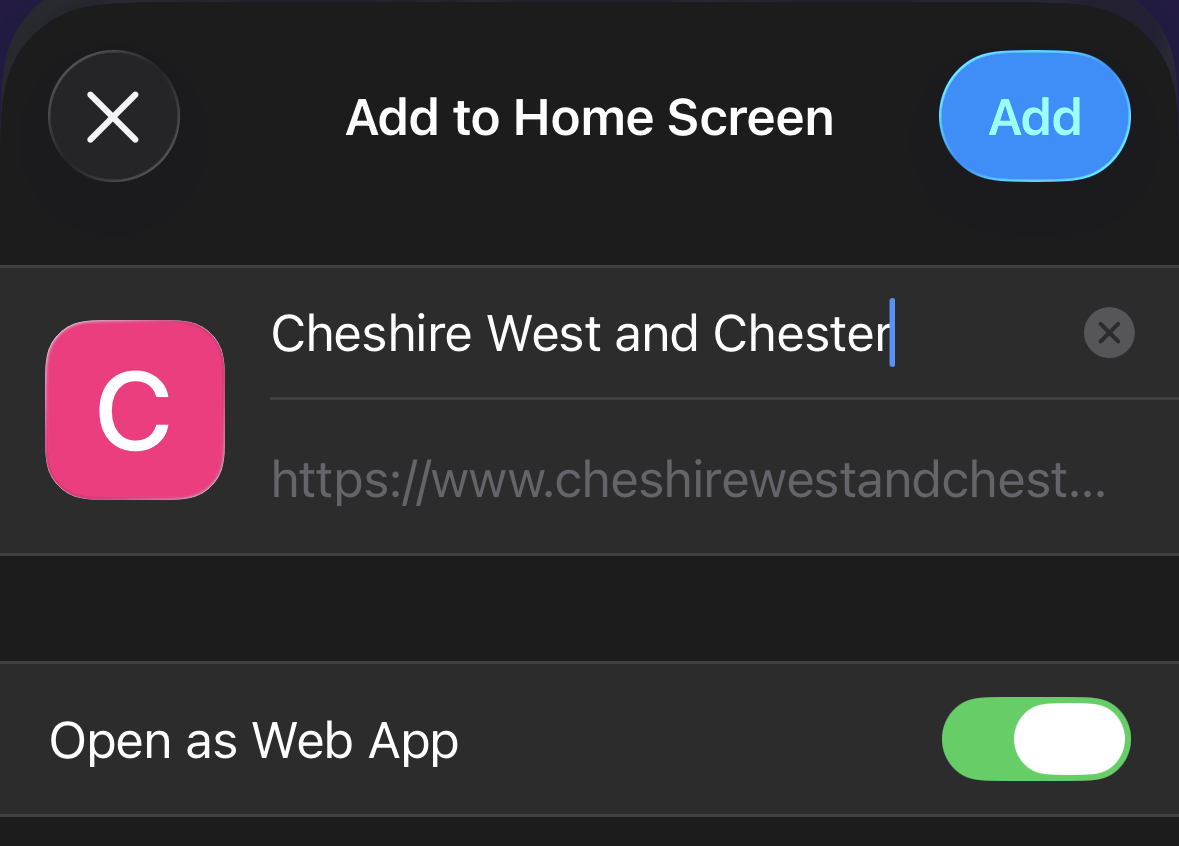
Step five
If you want, you can change the name. This is the name that will show under the icon on your home screen.
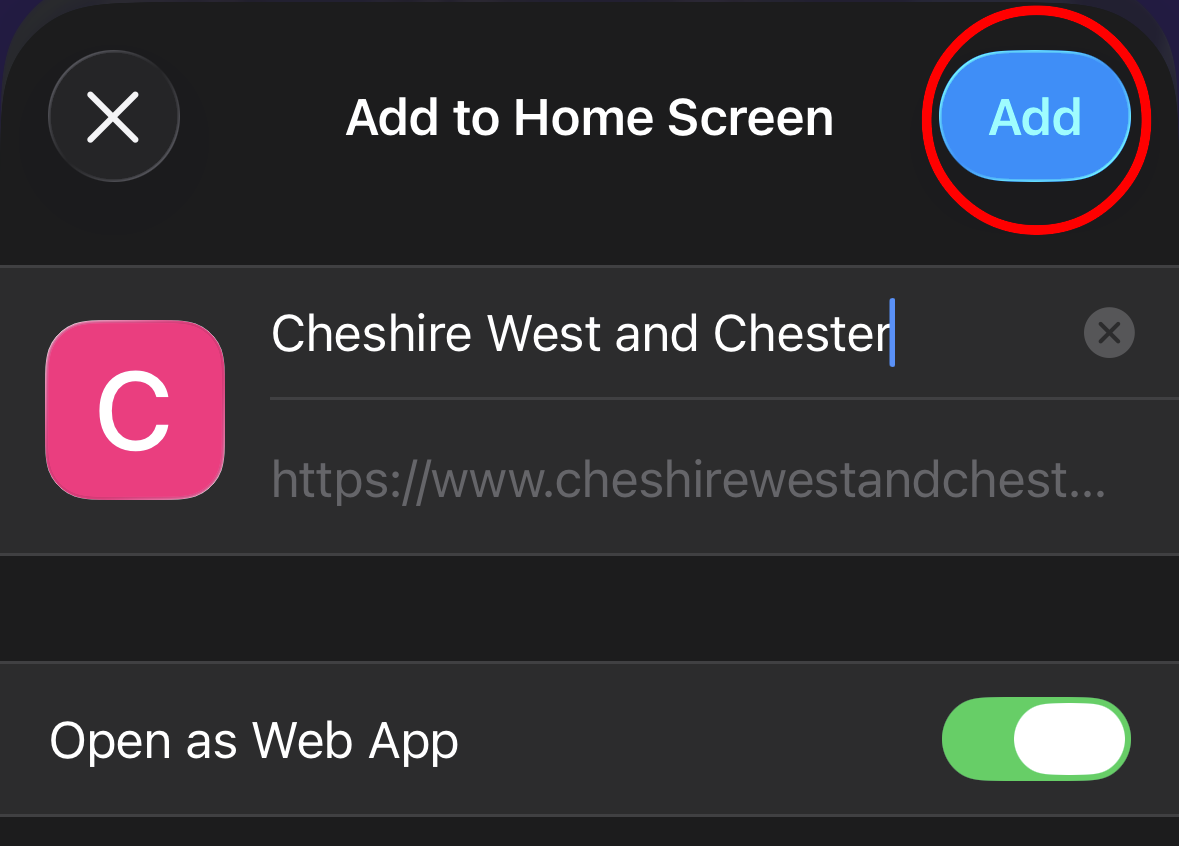
Step six
Tap “Add” in the top right corner.

Step seven
The website icon should now appear on your home screen. Tapping this icon will take you straight to the website.

Step one
Open the Chrome app on your Android phone (Google Pixel, Samsung etc).
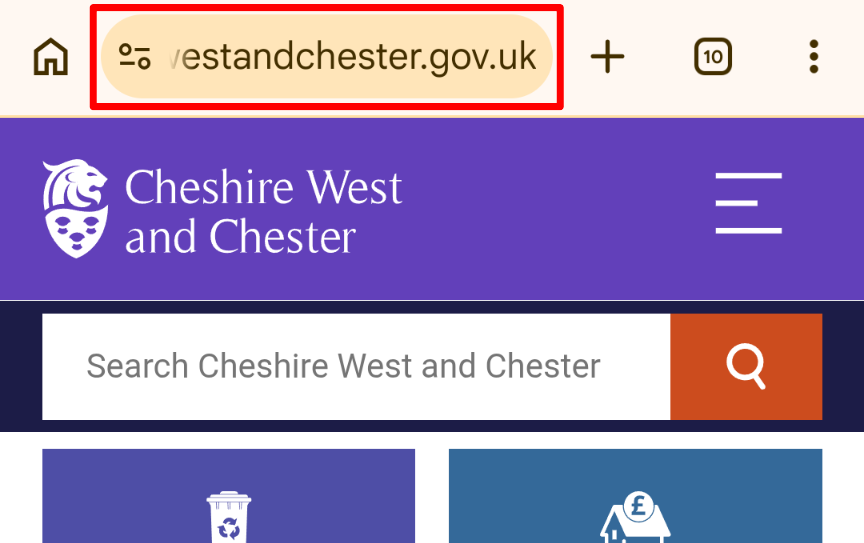
Step two
Type in or open Cheshire west and Chester or the 'Report it' page.
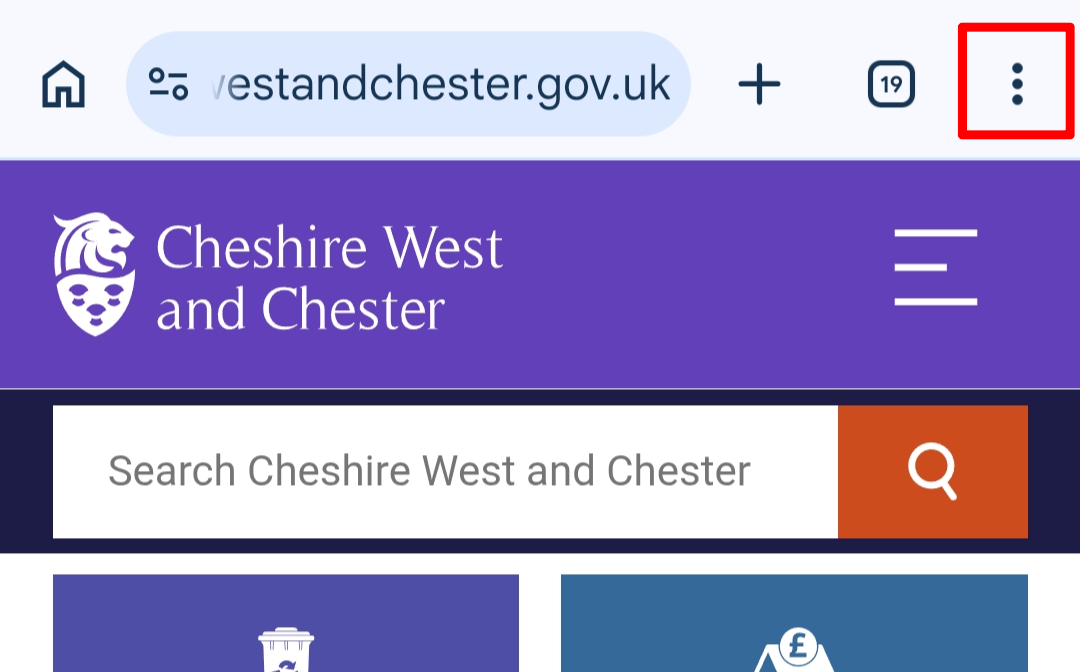
Step three
In the top right corner, tap the three dots (this is the menu button).
Step four
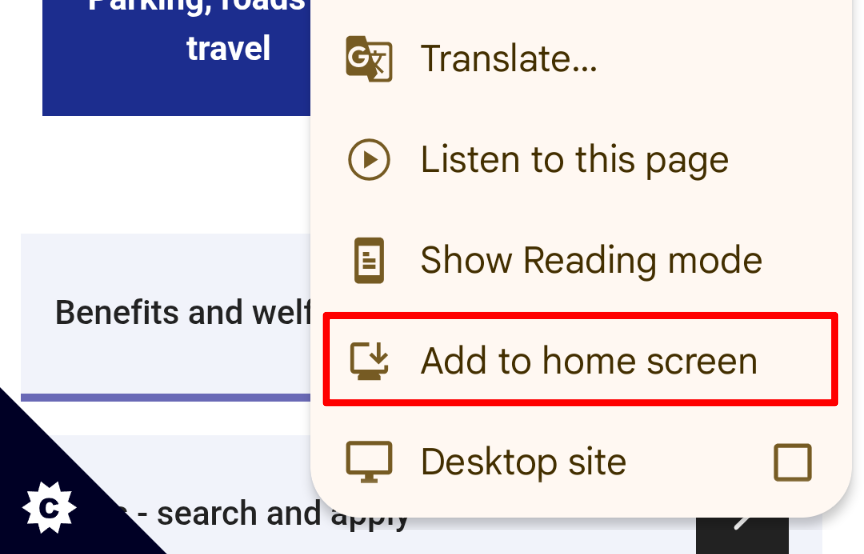
From the menu, select “Add to Home screen.” (You may have to scroll through the list to see this option).
Step five
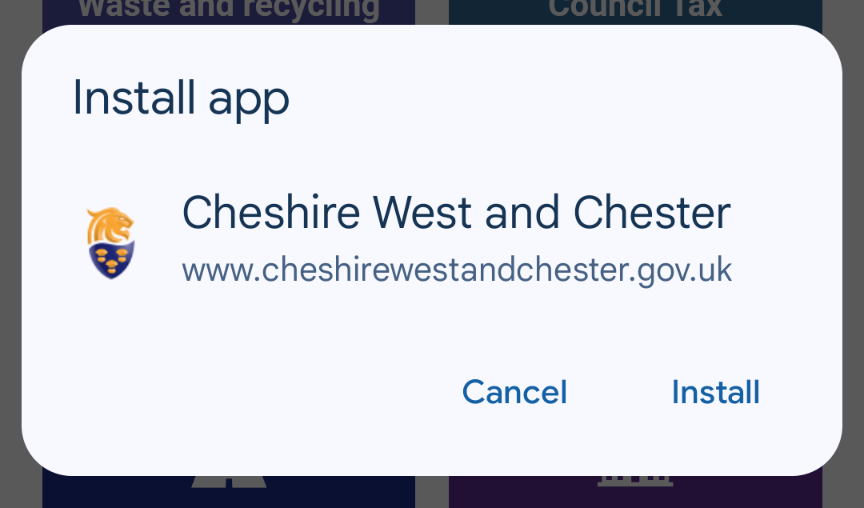
Select "install". It may also say "Add to Home Screen".
Step six
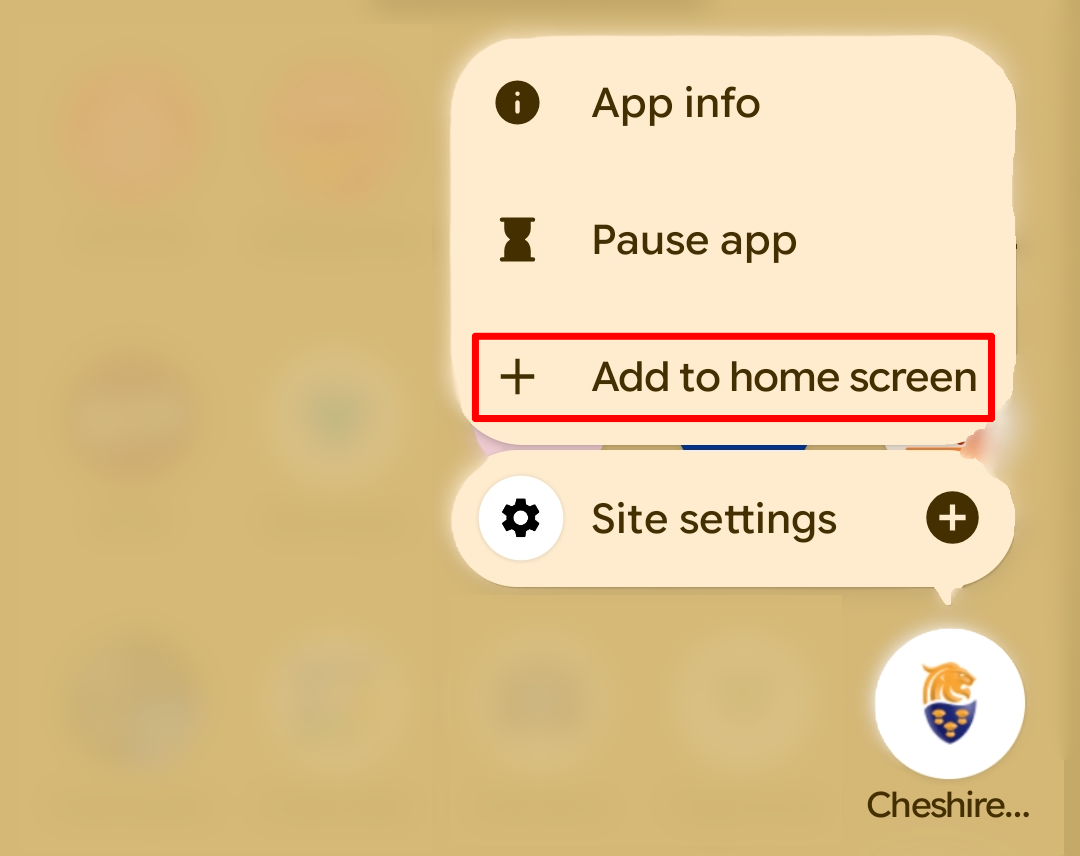
Find the icon in your apps. Press and hold the icon. Tap “Add.” You may need to tap “Add” again or drag the icon to the home screen, depending on your phone.

Step seven
The shortcut will now appear on your home screen. Tap it to open the website directly.

Step one
Open the Samsung Internet app.
Step two
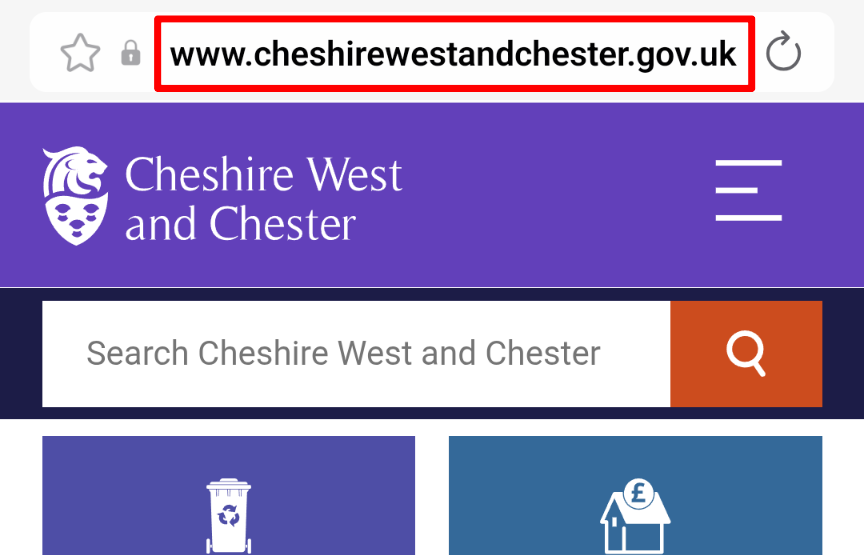
Type in or open Cheshire west and Chester or the 'Report it' page.
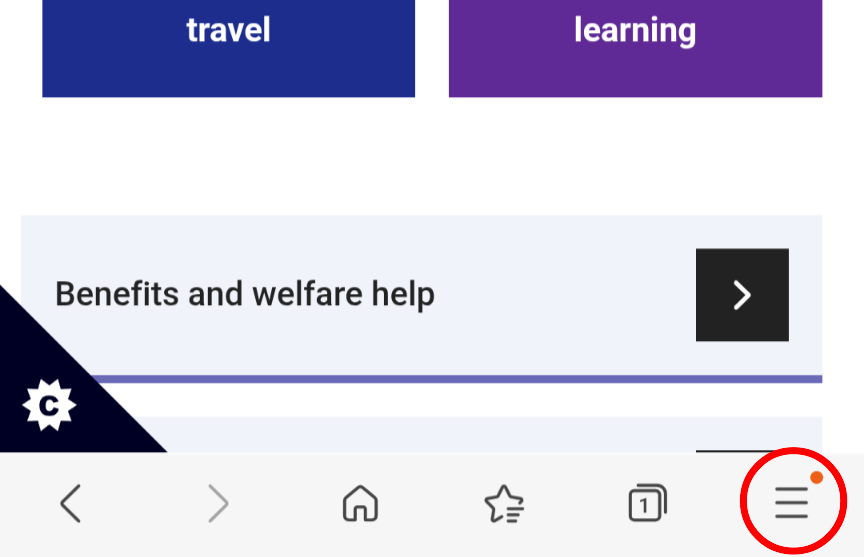
Step three
Tap the three horizontal lines in the bottom right corner to open the menu.
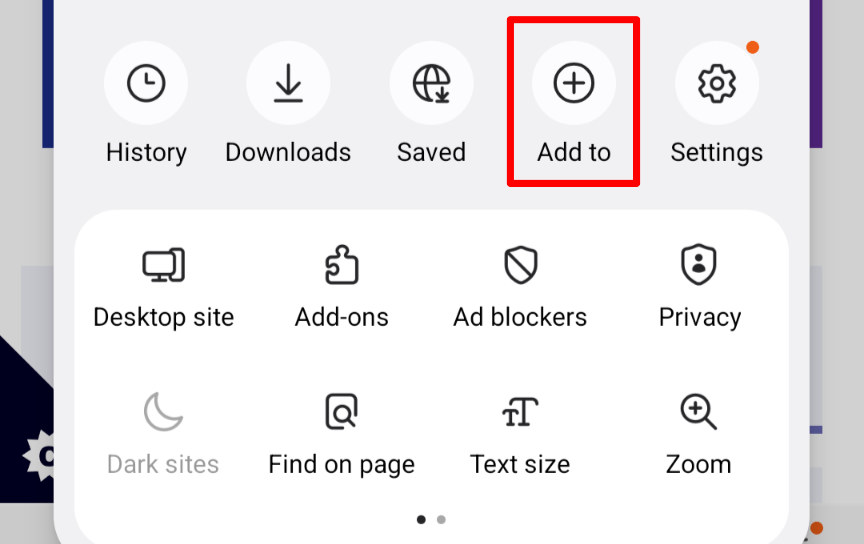
Step four
Choose “Add page to,” then select “Home screen.”
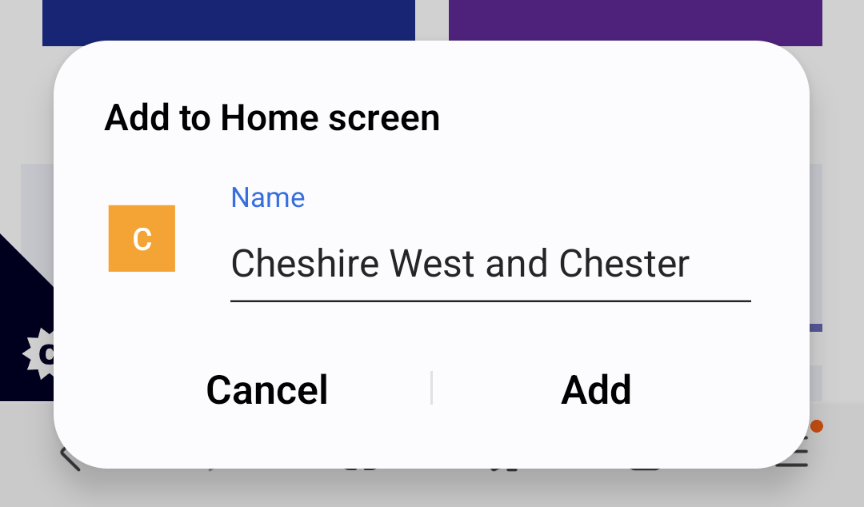
Step five
You can change the name if you wish, then tap “Add.”

Step six
The shortcut will show up on your home screen.

Step one
Open the Firefox app.
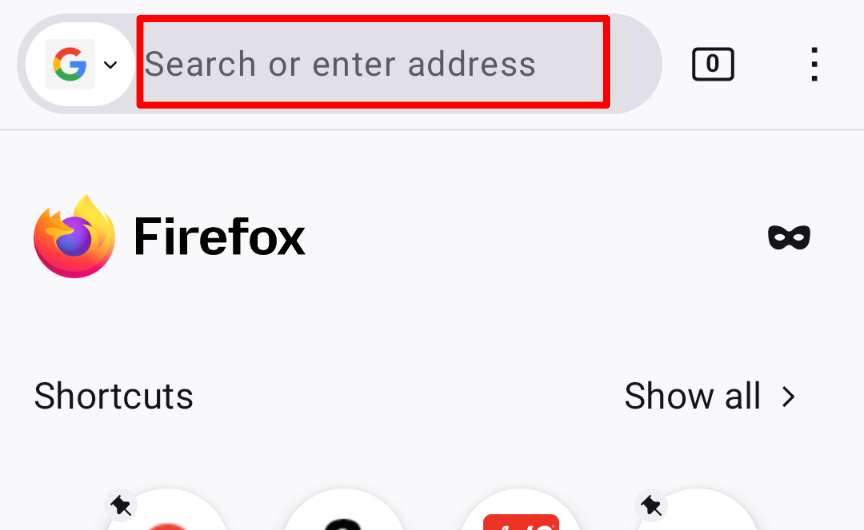
Step two
Type in or open Cheshire west and Chester or the 'Report it' page.
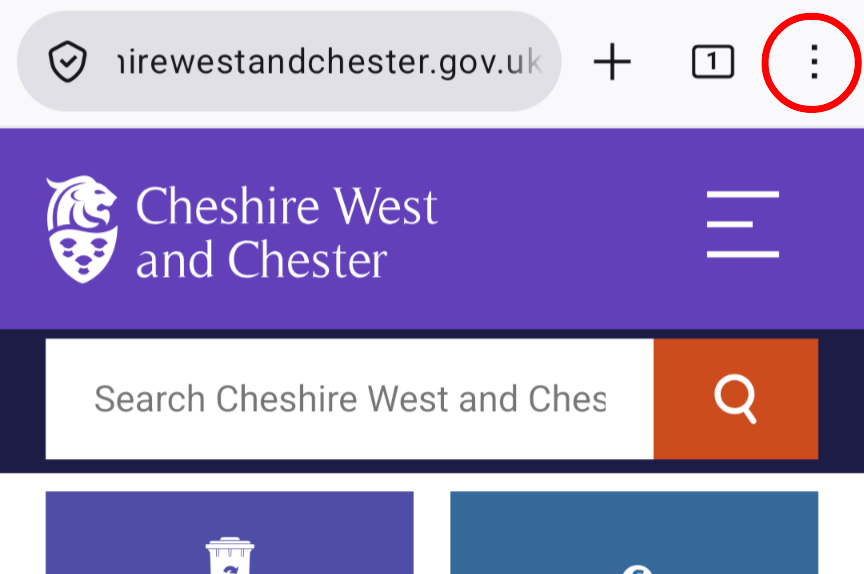
Step three
Tap the three dots in the top right corner to open the menu.
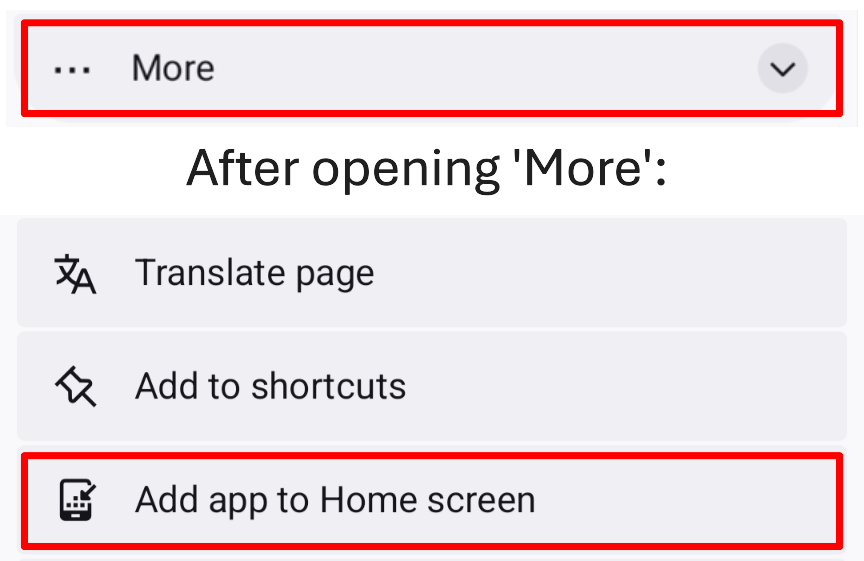
Step four
You will have another menu pop up. Select “Add to Home screen.”, if you do not see this, you need to tap "More", then the "Add to Home Screen" option will appear.
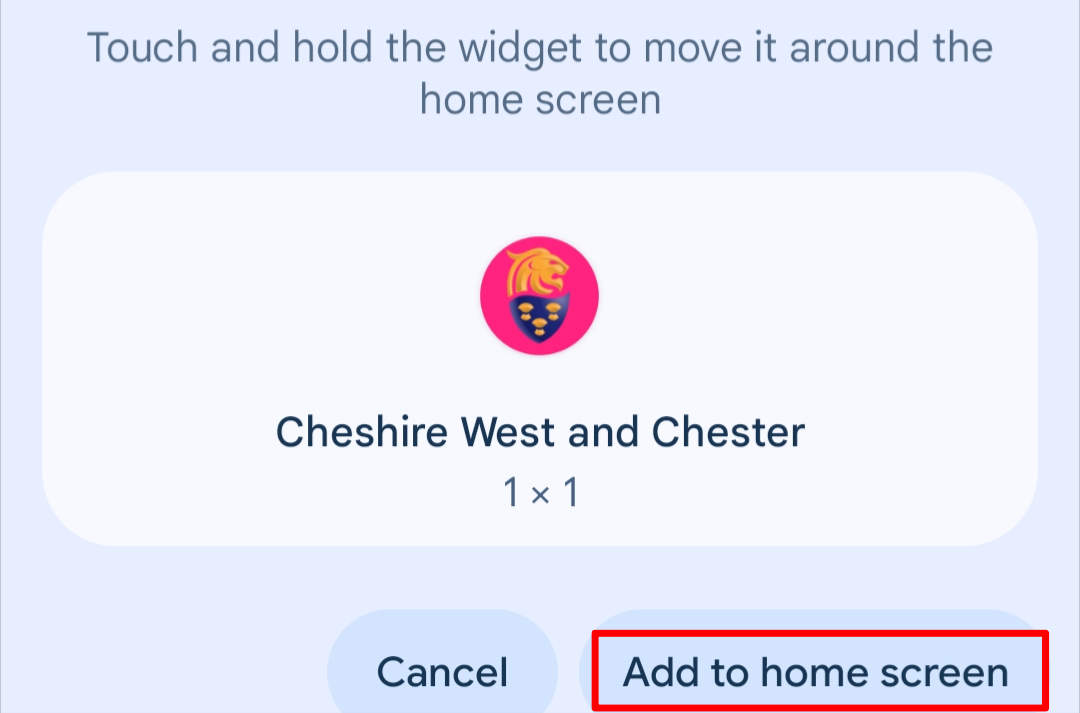
Step five
Tap “Add to Home screen”.

Step six
The website icon will now be on your home screen.
Extra tips:
- you need to be connected to the internet when you first set this up
- if you want to remove the website icon later, press and hold it on your home screen and choose “Remove” or “Delete.”
- if you do not see these options, make sure your phone’s browser is updated to the latest version.
What if someone can't access this page?
We know not everyone feels confident using smartphones or computers, so we have created a simple set of step‑by‑step instructions as printable PDFs below. These instructions explain the same things you see on this page, but in a format that can be printed, handed out, or shared with friends and family. This can be especially helpful if someone prefers to read instructions on paper or would like help from someone else when setting it up.